Who can use it: care-home managers and administrators.
Where to find it
Open Settings → Routine Checks, or the gear on the Routine Checks page.
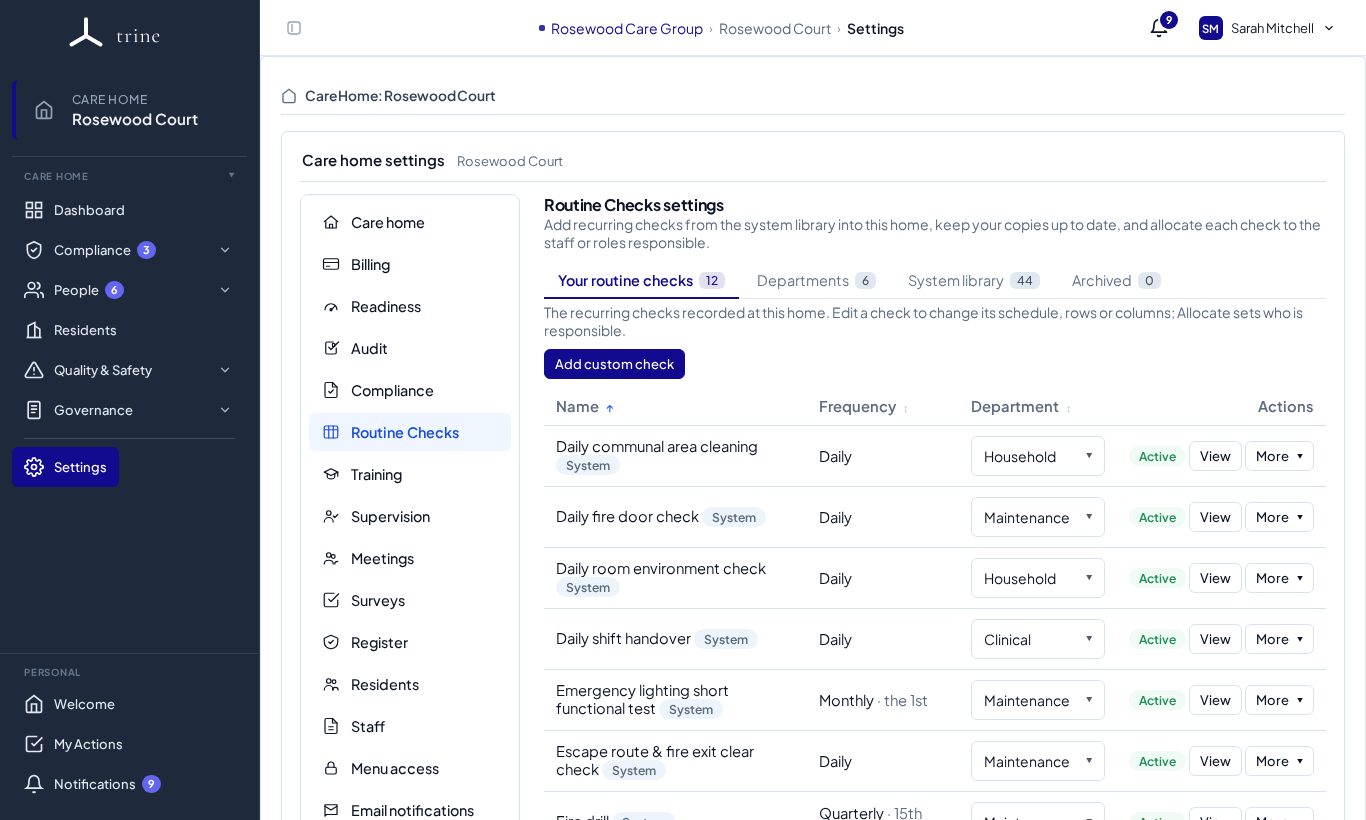
Tabs
- Your routine checks — the checks your home runs, with frequency, department and status. View opens one; More has edit, allocate, disable and archive.
- Departments — your departments (for example Clinical, Household, Kitchen, Maintenance) and each one's QR code.
- System library — every check you can copy in.
- Archived — retired checks, kept for history.
How to
- Copy checks from the System library into your home, or Add custom check. Library updates arrive as Update available, with "keep my version" if you prefer yours.
- Set each check's frequency (daily, weekly, monthly, quarterly, every six months or yearly), due time and department.
- For monthly and longer checks, choose the Schedule: - Rolling — from the last check (default): each check is due one interval after the last one was done. - Fixed calendar dates: the check is due on the same dates every cycle (for example 31 Jan, 30 Apr, 31 Jul, 31 Oct).
- Allocate each check to the responsible staff or roles, and enable reminders so they're nudged.
- Set an operational start date, and enable or disable a check without losing its history.
Changing when a check is due
- A new check asks for its first due date; any day of the month works (a 29th–31st falls on the last day of shorter months).
- On an existing check, pick a new date and Trine previews the resulting due dates before you save.
- Rolling: the picked date becomes the next due date. If it leaves a longer gap than the interval since the last check, you'll see a warning.
- Fixed: choose Rebase the schedule to restart the cycle from that date, or Continue as scheduled. Checks already recorded keep their dates.
- A check counts only from its start date: nothing due before then shows as missed.
Rows that don't apply
Use Exclude rows… on a column to mark rows it doesn't apply to (for example a room without a sink). You can do this for rows you've just added, before saving — everything is applied together when you save the check.
What to expect
Core checks are added to every new home automatically; add optional ones where they apply. Each department gets a QR code that opens a no-login page listing that area's checks.
Related: Routine checks