Who can use it: everyone.
Where to find it
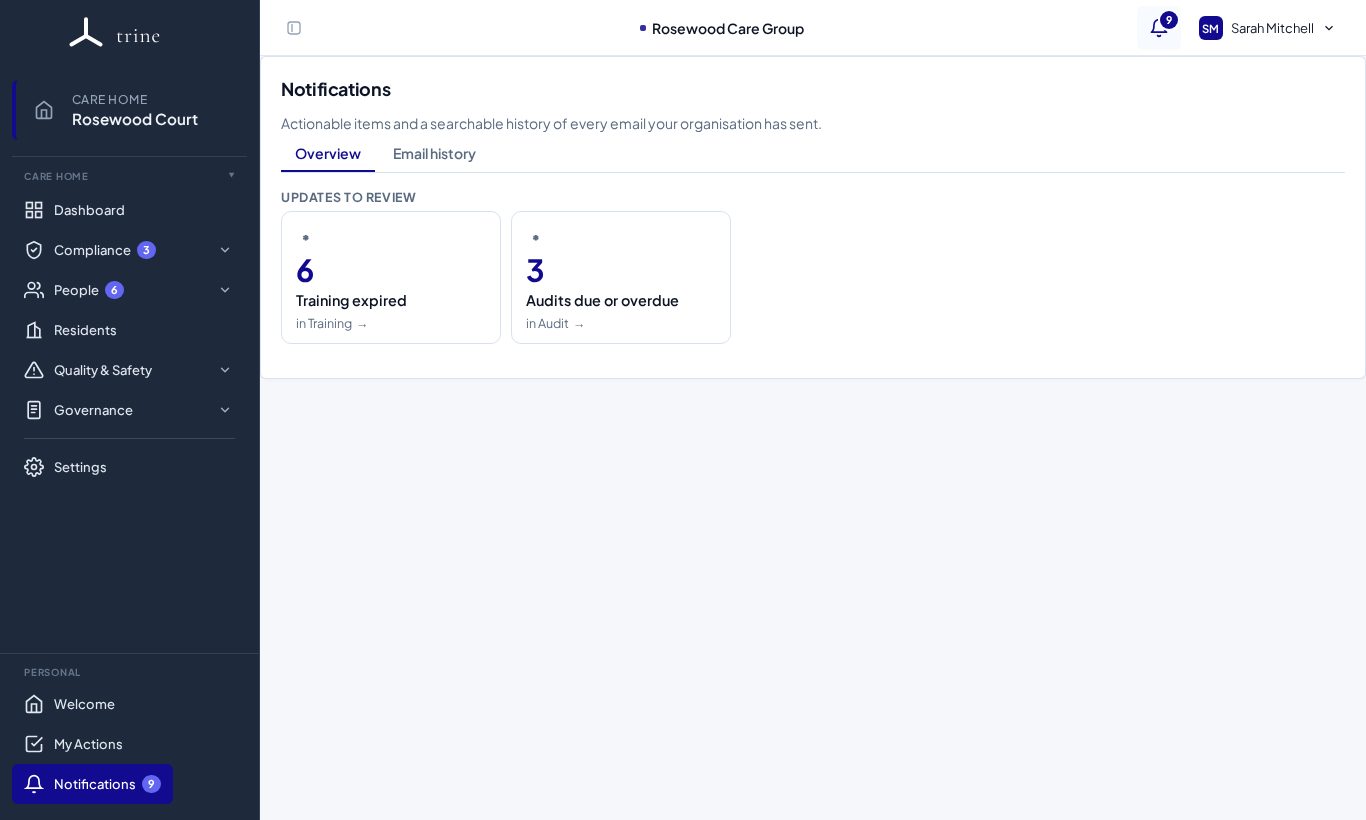
Open Notifications in the Personal section at the bottom of the menu, or select the bell at the top right. Both show the same count.
How to
- Overview lists Updates to review — for example Training expired or Audits due or overdue — each with a count. Click one to go straight to the filtered list where you can act on it.
- Email history shows every email Trine has sent about your organisation that you're allowed to see, with whether it was delivered. You can Resend an email when needed.
Menu markers
Numbers and markers beside menu items show where something is waiting:
- a number counts items for you to review;
- a red marker means something is urgent;
- a group in the menu shows the total of its pages.
Markers clear once you've dealt with the item.
Choosing what you get
Open Account → Notifications to:
- turn email categories on or off (for example training review outcomes, expiry reminders, action plan reminders or audit notifications);
- choose which menus show markers.
Good to know
- Some emails are essential (such as sign-in and security emails) and can't be turned off.
- A care home can turn a category off for everyone in Settings → Email notifications.
Related: Your account and security · Reply email and email-notification settings