Who can use it: care-home managers and administrators. Available on Professional and Enterprise.
Where to find it
Open Quality & Safety → Surveys.
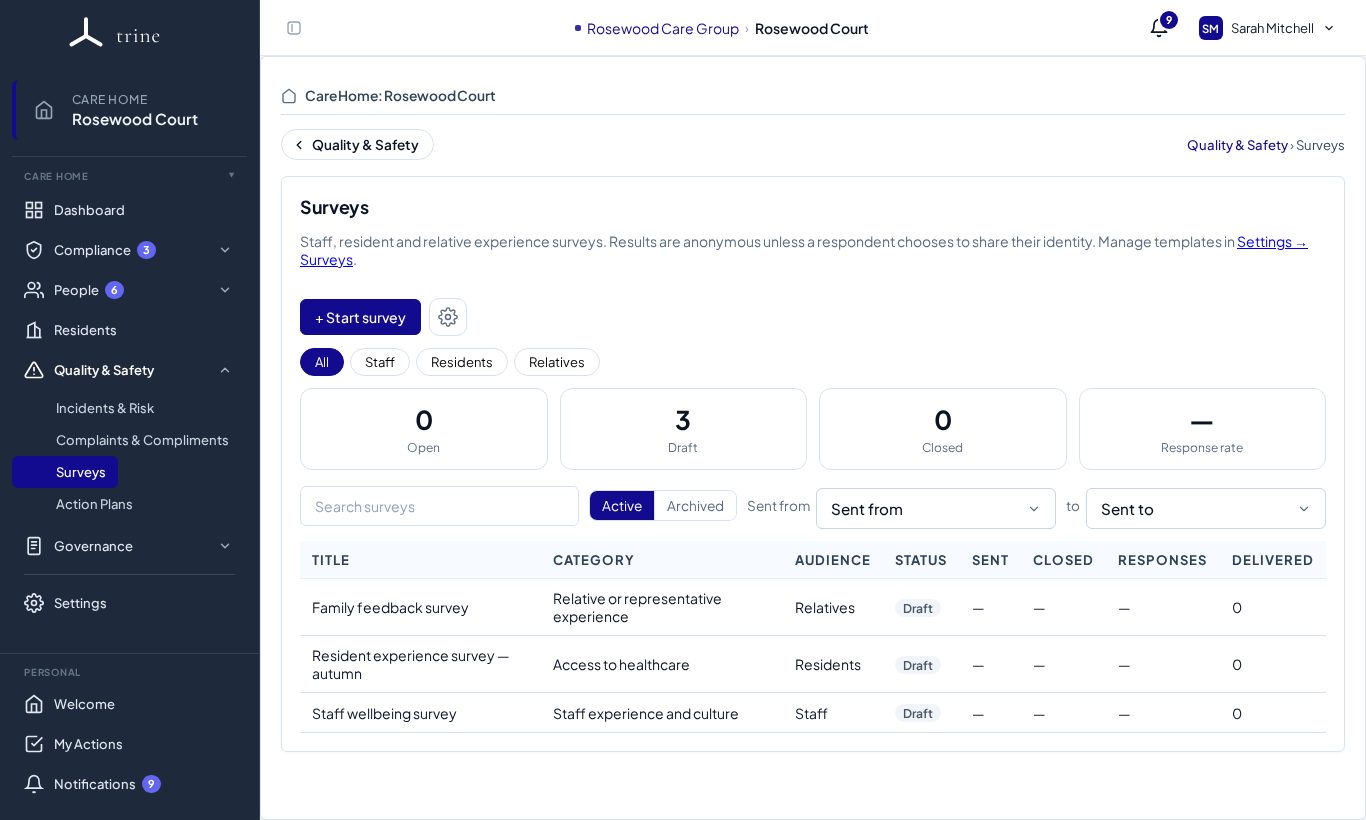
The page
- + Start survey launches a new campaign.
- Audience filter: All, Staff, Residents or Relatives.
- Cards: Open, Draft, Closed and Response rate.
- Active / Archived, plus Sent from / to dates.
- The list shows each survey's title, category, audience, status, when it was sent and closed, responses and deliveries.
Running a survey
- Press + Start survey and choose a template (copied into your home from the System Library in Settings → Surveys) and an audience.
- Give it a title and choose when it opens and closes.
- Publish it — this freezes the questions — and Trine creates a private one-use link for each recipient, emailed where an address exists or available as a printable QR code. A blank paper copy can also be printed.
- Respondents complete the survey with no login and choose whether to answer anonymously or share their identity.
- Review results: response rate, agreement percentage per question, distributions, comments and trends across comparable closed surveys. Download the results as a PDF.
Good to know
- Small samples are protected — breakdowns and comments are held back until enough people have responded, so no one can be identified.
- Sending survey emails needs a verified reply email for the home (Settings → Email notifications).
Related: Survey settings and templates · Meetings and governance · Reports and exports