Who can use it: managers and administrators manage the register; any staff member can submit a report (see Reporting a concern or feedback).
Where to find it
Open Quality & Safety → Incidents & Risk.
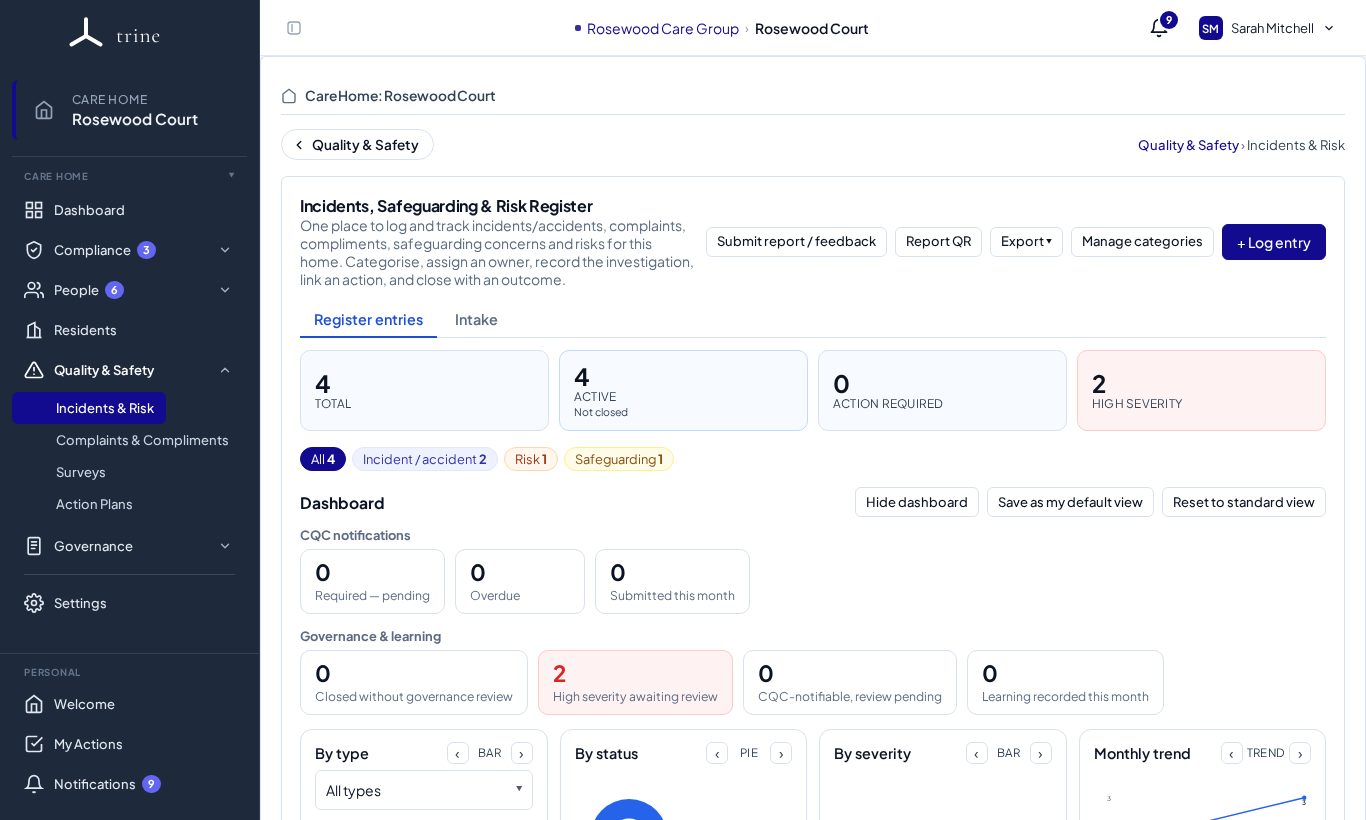
The page
- Tabs: Register entries and Intake (reports from staff and the public QR form waiting to be reviewed).
- Buttons: Submit report / feedback, Report QR (a printable QR code for no-login reporting), Export, Manage categories and + Log entry.
- Cards: Total, Active, Action required and High severity.
- Type chips (for example Incident / accident, Risk, Safeguarding) filter the list.
- The Dashboard shows CQC notifications (required, overdue, submitted), governance and learning (closed without review, high severity awaiting review, learning recorded) and charts by type, status, severity and month. Use Hide dashboard, Save as my default view or Reset to standard view.
Logging an entry
- Press + Log entry and choose its type: incident or accident, safeguarding concern, risk, or other.
- Add a title, the date and — if you know it — the time it happened (optional; a time in the future isn't accepted).
- Choose a category and severity. The owner defaults to you when you're able to own it; change it or leave it unassigned.
- Describe what happened and the immediate action taken.
- Save. You can come back to complete the investigation and outcome later.
Working an entry
Click an entry to open it.
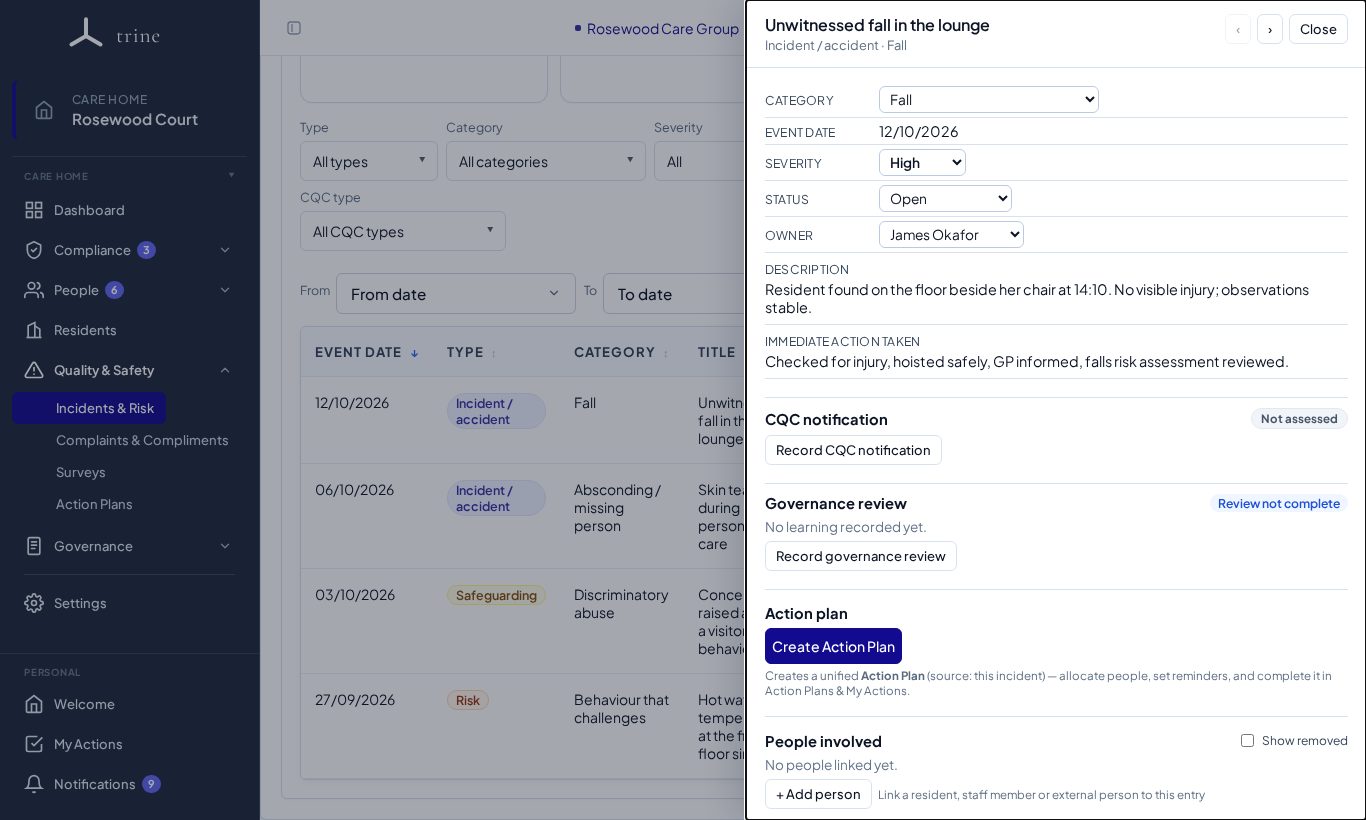
- Update the status as it progresses, and record the investigation.
- CQC notification — record whether a statutory notification is needed and when it was submitted (Record CQC notification).
- Governance review — record the manager's review (Record governance review).
- Action plan — Create Action Plan to manage any follow-up.
- People involved — link residents, staff or others with + Add person.
- Attach source documents (for example an incident form or witness statement).
- Close the entry with an outcome and any lessons learned. Closing requires an outcome.
Exporting
Use Export to download the register for a date range:
- Excel — one sheet per category, with dates and times as real spreadsheet values.
- CSV — the raw data, including the event time.
- PDF — a printable summary with an owner column, with or without graphs.
Good to know
- Trine records your entries only — it never submits notifications to CQC on your behalf.
- Categories are managed in Settings → Register.
Related: Complaints and compliments · Reporting a concern or feedback · Action Plans