The Organisation log is the home's record of contact with outside organisations: the council, GPs and the NHS, the police, CQC and the ICO, contractors, suppliers, agencies and families. Each entry says what happened, who was involved, the outcome, and holds the evidence — so you can show an inspector exactly what was done and when.
Who can use it: managers and administrators, and anyone given the Organisation log menu. People with read-only access can view entries; adding and editing needs full access. External users and agency staff never see it.
Where to find it
Open Governance → Organisation log.
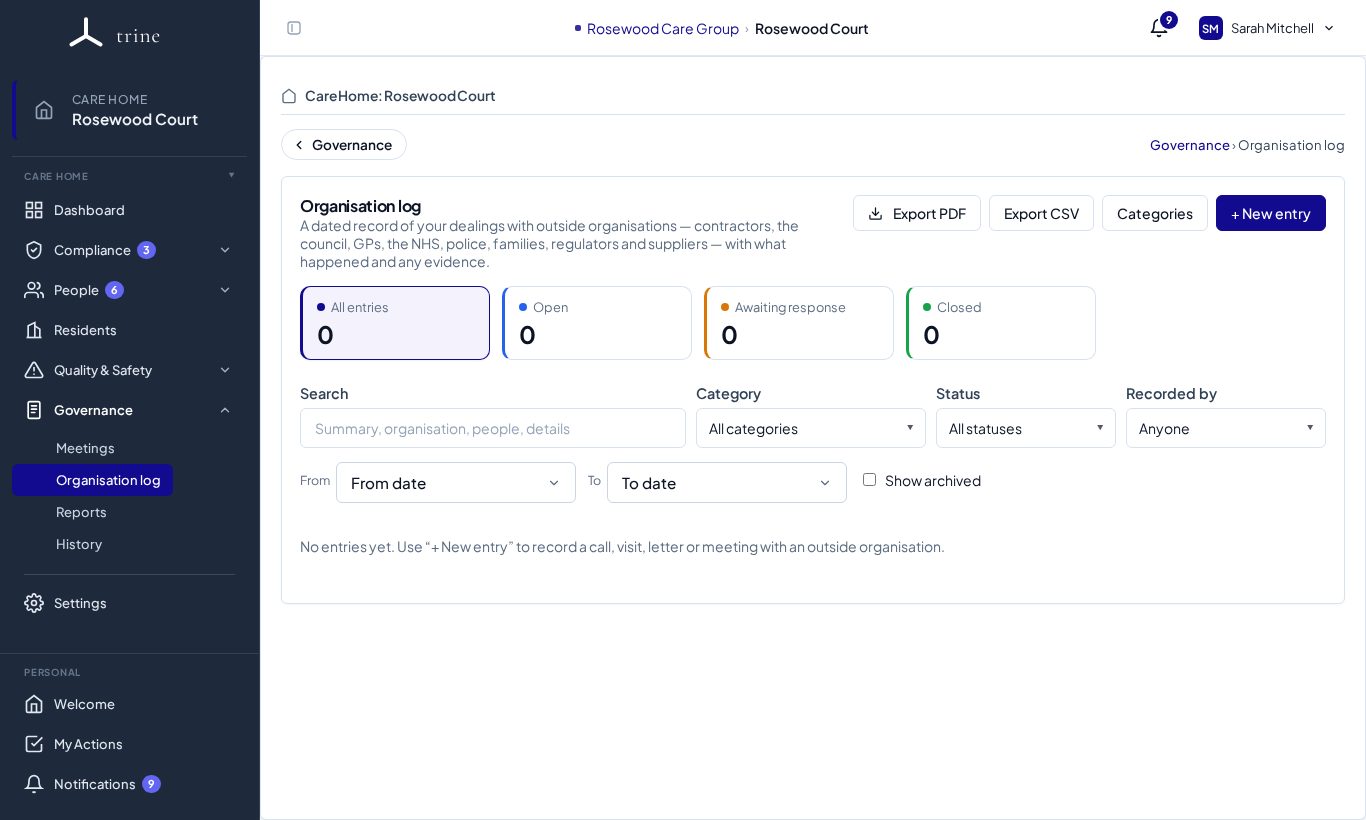
The page
- Buttons (top right): Export PDF, Export CSV, Categories and + New entry.
- Cards: All entries, Open, Awaiting response and Closed. Click one to filter.
- Filters: Search (summary, organisation, people, details), Category, Status, Recorded by, a From / To date range and Show archived.
- Each entry shows a date tile, its summary, the Outcome line, chips for its category, status, organisation and the people involved, its evidence files, and on the right Logged … by ….
Adding an entry
- Press + New entry. The entry opens as its own page, with ‹ Organisation log to go back and the breadcrumb Governance › Organisation log › New entry.
- Set the Date and time it happened (defaults to now) and a Category.
- Write a short Summary (required) — for example Council safeguarding team called about Mrs B.
- Add the Organisation and Who was involved.
- Describe What happened and the Outcome — what was agreed or decided.
- Set the Status: Open, Awaiting response or Closed.
- Add Evidence: drop files on the box or click to choose (PDF, Word, image or text; up to 10 MB each on Starter and Professional, 25 MB on Enterprise).
- Press Save entry. The entry then shows as a read-only page.
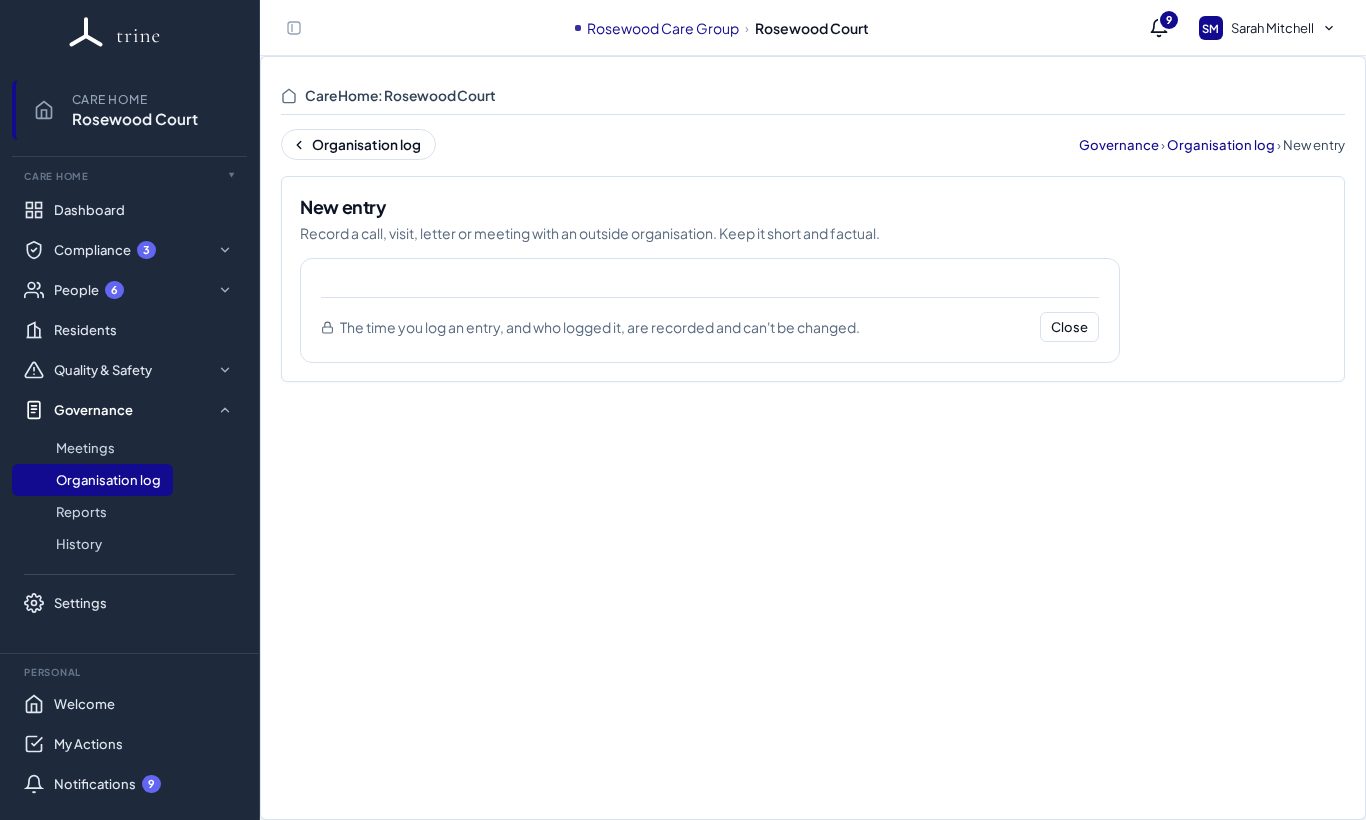
If you try to leave with unsaved changes, Trine asks whether to Discard them or Keep editing.
Viewing, editing, follow-ups and history
- Click an entry to open it. It opens read-only: the summary as the heading, then the date and time, category, status, organisation, who was involved, what happened and the outcome — so nothing changes by accident while you read it or show it to an inspector.
- View on a file opens it in the document viewer.
- To change something — for example the status from Awaiting response to Closed when the reply arrives — press Edit. The fields open; change them and press Save entry, or Cancel to go back to the read-only page (Trine asks first if you've changed anything).
- Adding more files, or archiving one added by mistake, is also done in Edit.
- Action Plan sends the entry to Action Plans when there's follow-up work; it works without pressing Edit. It files into the Organisation log list.
- History shows who created and changed the entry, and when. Each edit lists the fields that changed; Show changes shows each one's old value (struck through) and new value. Saving without changing anything adds nothing. Edits made before this was added show which fields changed, without the old and new values.
- Archive takes an entry out of the list without deleting it; tick Show archived to see and restore it. An archived entry can't be edited until it's restored.
People with read-only access see the same read-only page, without Edit or Archive.
Categories
Press Categories to manage the list. Every home starts with Contractors & maintenance, External agencies (council, GP, NHS, police), Families & representatives, Regulators (CQC, ICO), Suppliers, Staffing & recruitment and Other. Rename, reorder, add your own, or archive ones you don't use — entries keep their category.
Exporting
- Export CSV downloads the entries shown, for a spreadsheet.
- Export PDF produces a professional, inspection-ready document of exactly the entries shown, respecting your current search, filters and dates:
- page 1 has the home's name, address and logo, the title, and a summary strip with the period, number of entries, filters used and when it was generated;
- a Summary by category table, broken down by status;
- each entry in its own bordered block that never splits across pages, with a reference (E-001, E-002…), date, category, status, organisation, who was involved, what happened, the outcome in bold, its evidence file names, and Logged … by … · timestamp locked;
- an evidence index (reference, file and entry) and a declaration with Name, Signature and Date lines;
- every page's footer shows the home's name, when it was generated, Confidential and Page X of Y. The file is named organisation-log_home_from_to.pdf. If nothing matches, the PDF says so clearly rather than being blank. Very large exports (over 2,000 entries) ask you to narrow the dates or filters first.
Good to know
- The time an entry was logged is fixed and shown on the entry and in the PDF; later changes are recorded in its history.
- Keep personal details to what's needed — record that a conversation happened and its outcome, not clinical records.
Related: Action Plans · PDF exports · Meetings and governance