Who can use it: care-home managers and administrators (access can be set per meeting type).
Where to find it
Open Governance → Meetings.
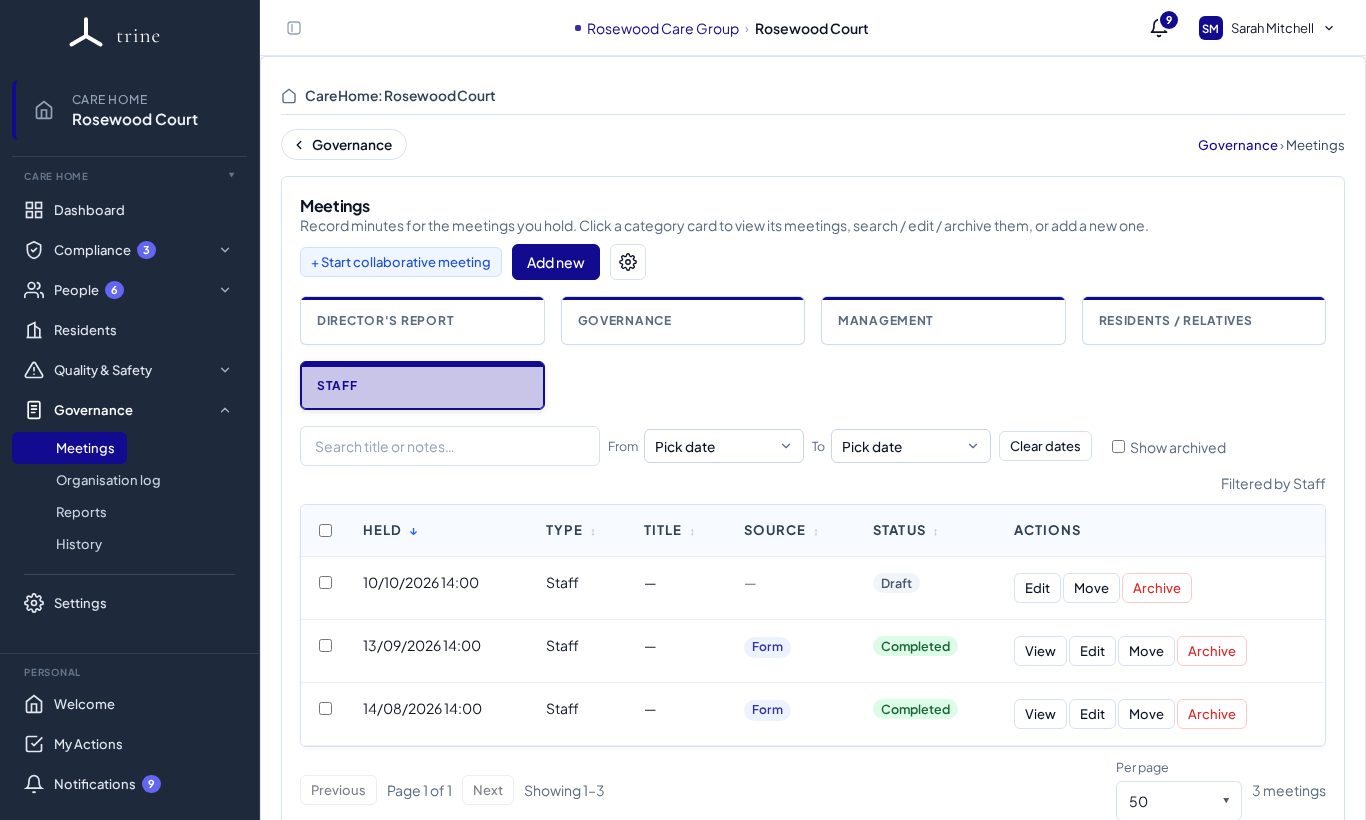
The page
- Category cards — one per meeting type (for example Director's Report, Governance, Management, Residents / Relatives, Staff). Click a card to list its meetings.
- Search titles and notes, filter by date (From / To, Clear dates) and tick Show archived.
- The list shows when each meeting was held, its type, title, source (Form for a meeting recorded in Trine, or an uploaded file), status (Draft or Completed) and actions: View, Edit, Move and Archive.
- Buttons: Add new, + Start collaborative meeting (Enterprise) and the settings gear.
Recording a meeting in Trine
- Press Add new and choose the meeting type and template.
- Set when it was held and who attended.
- Work through the template's questions. Review Trine data pulls in current figures (for example open incidents or training compliance) so you don't have to look them up.
- Use Previous actions review to go through the last meeting's agreed actions with their Action Plan status.
- Record Agreed actions with an owner and due date.
- Save as a draft while you work; Complete it when it's final.
Filing signed minutes from a file
If your minutes were taken on paper or in Word:
- Choose the quick attach option and pick the meeting type and date.
- Attach the signed minutes (PDF or Word).
- In Agreed actions & close, list each action agreed at the meeting — title, owner and due date. You can add, edit or remove rows.
- Save. The meeting is filed as completed, with its actions recorded.
You can add or change the actions later from the meeting's Edit popup. Actions from an uploaded-file meeting work exactly like those from a form meeting: they come up in the next meeting's Previous actions review, and each one can be sent to Action Plans. An action already on an Action Plan can't be removed from the meeting.
Good to know
- Print or display a per-template QR code that opens a no-login public form so minutes can be submitted directly; rotating the code invalidates the old printout.
- On Enterprise, two or more people can co-edit a meeting draft live before finalising.
- Select several meetings to export them together as one PDF with charts.
Related: Action Plans · Meeting types, templates and access · Organisation log