Who can use it: managers manage training; staff can upload their own certificates. Available on Professional and Enterprise.
Where to find it
Open People → Training.
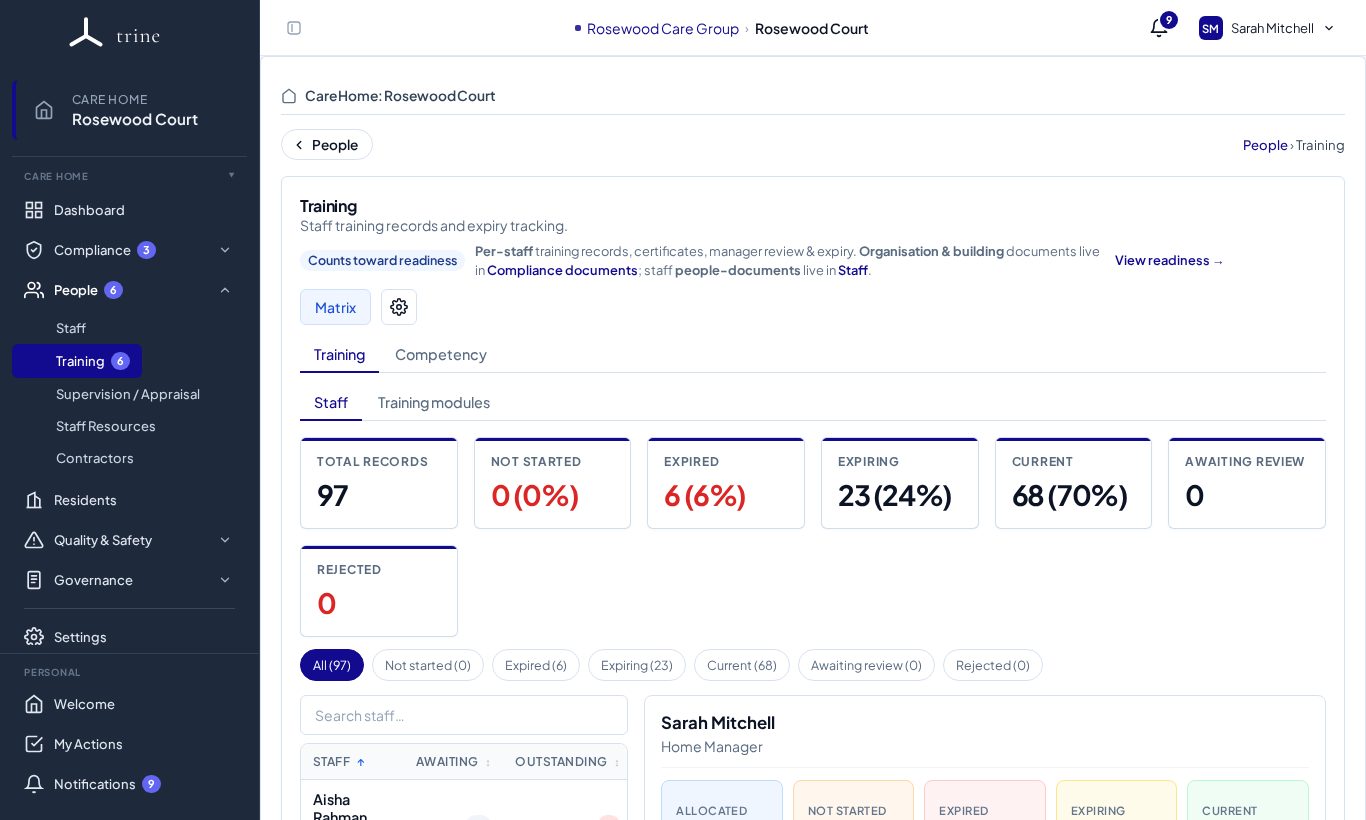
The page
- Tabs: Training and Competency. Within Training: Staff and Training modules.
- Cards: Total records, Not started, Expired, Expiring, Current, Awaiting review and Rejected. Click one to filter.
- Pick a staff member on the left to see their allocated courses on the right, each with its status, completion and expiry date.
- Matrix opens the whole home at a glance.
The matrix
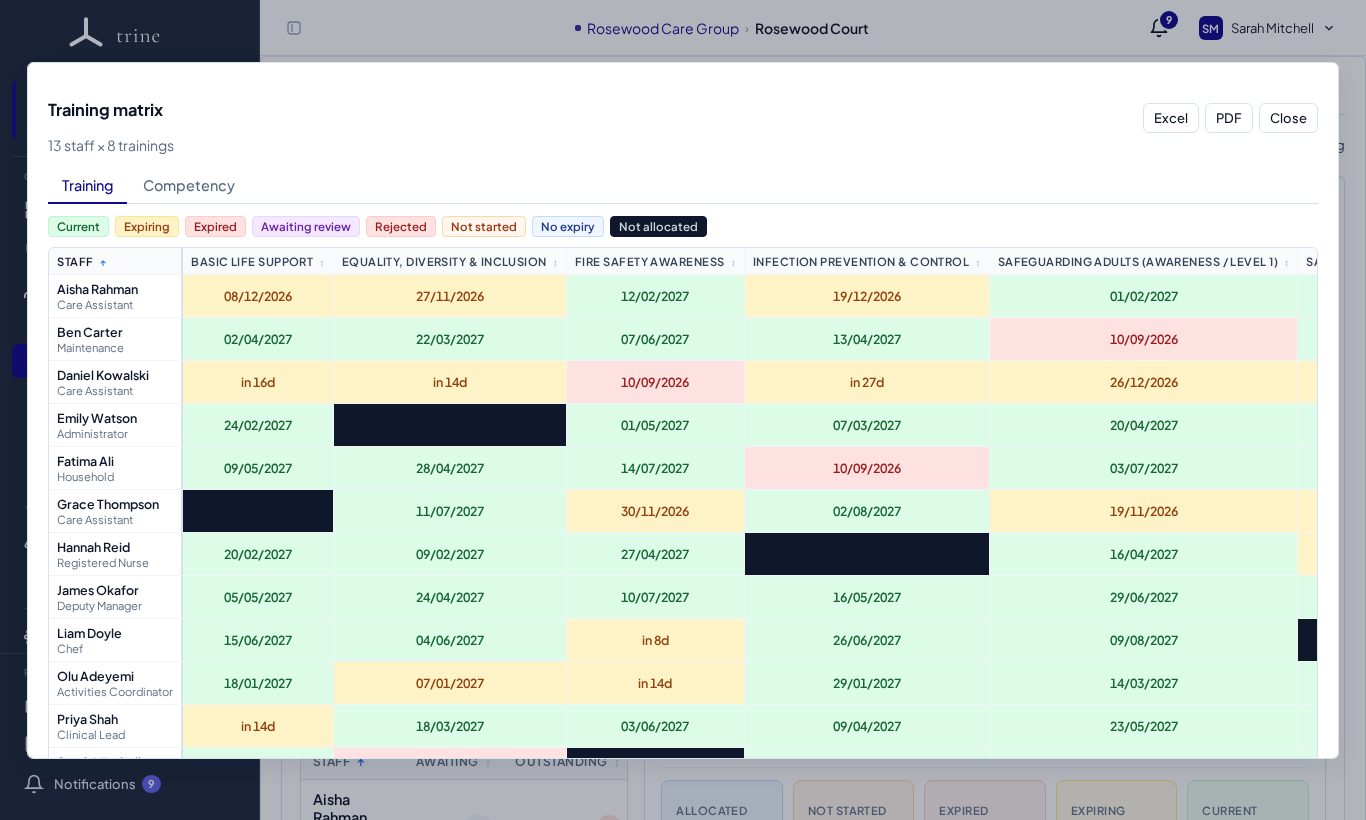
Each cell is one person's course, coloured by status — Current, Expiring, Expired, Awaiting review, Rejected, Not started, No expiry, Not allocated or No longer allocated — showing its expiry date. No longer allocated means the course isn't required for that person any more: their history and certificates are kept, but it doesn't count towards compliance or send reminders. Switch to the Competency tab inside the matrix for competencies. Download it with Excel or PDF.
How to
- Each role is automatically allocated its mandatory courses when a staff member joins.
- Record training: open a person's course, enter the completion date and upload the certificate. If you leave the expiry date blank, Trine sets it from the course's renewal period.
- Review uploads waiting in Awaiting review: accept them, or reject them with a reason.
- Watch Expiring and Expired — reminder emails go to managers as dates approach.
- To stop requiring a course for one person, untick them in Allocate. If they already have a certificate it is kept and the course shows as No longer allocated; tick them again to bring it back.
Good to know
- Staff with read-only access can upload or replace certificates on their own records. These land Awaiting review and don't count toward compliance until a manager accepts them.
- Who can view the matrix, accept uploads and manage courses is set in Settings → Training → Access control — you can delegate this without making someone a manager.
- Assessed, hands-on competencies are tracked separately under Competency.
Related: Competency · Training settings and training access · Supervision and appraisal