Who can use it: care-home managers and administrators. Recruitment needs staff-records access at the home (and recruitment management for applicant details and CVs); careers settings need the home's Settings access. The home's plan must include Staff / HR.
Available now: You can set up vacancies, your careers settings and your recruitment privacy notice. Public careers pages and online applications aren't switched on in Trine yet, so applicants can't apply online and nothing appears on a careers page or your website. Settings → Recruitment says "public careers pages aren't switched on in Trine yet". Uploading your privacy notice as a PDF also isn't available yet: use a link to your own page, or write it in Trine.
Where to find it
- People → Recruitment — vacancies, applications and reporting. It's the sidebar item directly below Staff, or the second card on the People page (after Staff). Recruitment was previously the Jobs tab under Staff (historical); old links open the new page automatically.
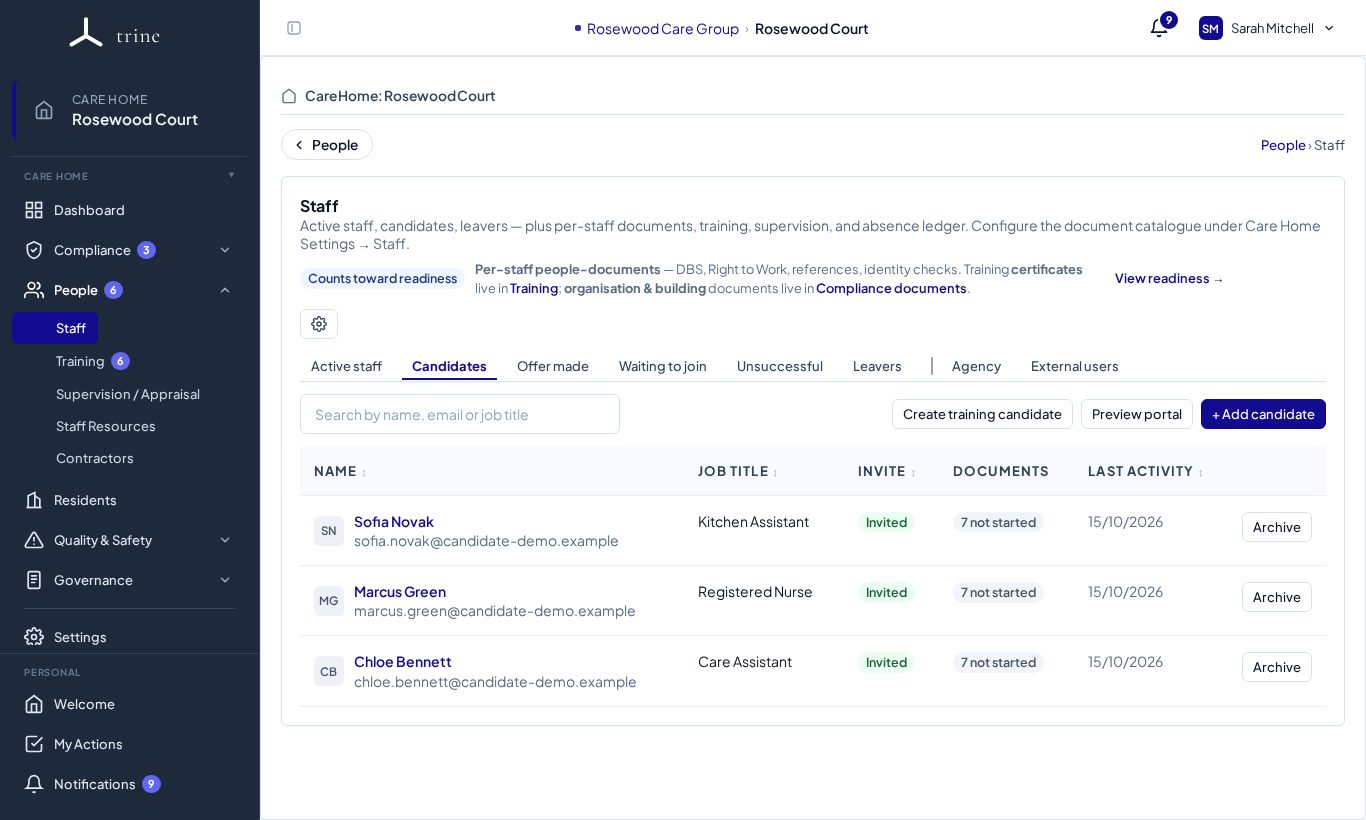
- People → Staff — the Candidates, Offer made, Waiting to join and Unsuccessful tabs, for people you are taking through checks, offer and onboarding.
You can see Recruitment if you can manage staff records at the home, or if you hold the home's Settings access (you then see only the careers page status). If you hold Settings access, the gear at the top right of Recruitment opens Settings → Recruitment (careers page on / off, privacy notice and, on Enterprise, website embedding). Your care home's plan must include Staff / HR.
Your recruitment privacy notice
Applicants must be able to read your privacy notice before they apply. In Settings → Recruitment, choose one way to provide it:
- Link to your notice — the address of a page on your own website.
- Upload a PDF — up to 10 MB. Every file is virus-checked. Applicants open it in a new tab from your careers pages. If file checking isn't available, the upload is refused ("File checking isn't available right now") and nothing is stored — use a link or write it in Trine instead.
- Write it in Trine — start from Trine's template (based on UK data protection law) or with your own wording. First read and accept a statement: neither is legal advice, what your notice says is your organisation's own decision, and Trine and Purinode don't accept legal responsibility for it. If you use the template, replace every placeholder marked [[…]] with your own details. Then approve and publish it. Trine always adds a short note at the end saying the notice belongs to your organisation; it can't be edited.
- Trine's template works like a document with highlighted placeholders. Click a placeholder to fill it in, or mark it "Not applicable" where that's allowed; a counter shows what's left. Undo and Redo (or Ctrl+Z / Ctrl+Y) work for typing, formatting and inserted placeholders. Trine's template puts the default wording back, keeping your answers.
- Tables. Table adds a small table where your cursor is. Click inside any table, including the ones in Trine's template, to show the table buttons: add a row above or below, add a column left or right, delete a row or column, or delete the table. New rows and columns start empty.
- Statements filled in by Trine. A few parts describe Trine itself: who operates Trine, how your information is protected, Trine's international transfers and how long Trine keeps security logs. Trine fills these in from its Platform disclosure basis — facts Trine has checked against evidence. You can read the basis (read-only) in Settings → Recruitment. A notice written in Trine can be approved and published only while every Trine statement is verified.
- When Trine's facts change, your published notice is never changed for you. Instead, Settings → Recruitment shows "Your published notice needs review": start from the published notice, approve it and publish the new version.
- How a change affects your vacancies. Trine says how significant each change is:
- Administrative or non-material: your notice is still valid. Recruitment shows an amber note. The first time you publish, resume or reopen a vacancy afterwards, you're asked to confirm you've seen it (recorded once for that notice version).
- Material: your published notice is now inaccurate. Recruitment shows a red note. You can't publish, resume or reopen vacancies, and vacancies scheduled to start later stay hidden, until you approve and publish the updated notice. Vacancies that are already live keep running and keep accepting applications.
- Trine changes that are still being checked have no effect until they're verified.
- If your notice is your own link or PDF, you see the note when Trine's information changes, but publishing is never paused — check that your document still describes Trine correctly.
-
When Trine updates its notice template. Your published notice doesn't change, and you can keep recruiting. Settings → Recruitment shows Review the update:
- sections you haven't changed update automatically;
- for each section you did change, you choose Keep mine, Use Trine's or Edit it myself;
- your placeholder answers are kept.
The result is saved as a draft. Check it, approve it and publish it as usual. Changed your mind? Undo the update is available for 72 hours, until you approve the draft. - Using a link or PDF? Your notice should still mention Trine. For example: "We use Trine, provided by Purinode Ltd, to run our careers pages and receive applications. Trine and its service providers (hosting, email delivery and security) process your information on our behalf; some of them process it outside the UK under approved safeguards. Details: trine.uk/legal/privacy."
Select Save draft (or Upload PDF as draft), check it, then Publish this version. Published versions never change; each application keeps the version the applicant read.
The page has three parts: Overview, Vacancies and Applications.
Managing vacancies
- New vacancy creates a draft. A saved vacancy opens read-only; select Edit to change it. Choose the Job role (required — search the list by typing). Choosing a role fills in the Advertised title, which is what applicants see; you can reword it, for example "Night Nurse". Applicants you progress become Candidates with the vacancy's job role.
- Description: use the toolbar for headings, bold, lists and links; Preview shows how it will look.
- Requirements and benefits: pick from the suggestions or add your own. Requirements are grouped into Essential and Desirable; use Move to change the group. For Registered Nurse roles, "Current NMC registration" is added automatically, once, as Essential — you can remove or change it and it won't be added again.
- Publish makes the vacancy visible on your careers page from its start date until its closing date.
- Pause hides a live vacancy from your careers page without closing it (you can add a reason for your team). Resume shows it again. Paused vacancies don't resume on their own.
- Close stops new applications. Reopen publishes a closed vacancy again. Archive removes it from the list; Restore brings it back. Duplicate makes a new draft with the same content.
- Delete is only available while a vacancy has never received an application.
- Preview (in the list or on the vacancy) opens a popup showing the public page as applicants would see it. Only your team can see the preview; it can't be used to apply. Press Close or Esc to return.
The list shows each vacancy with its shift and job type underneath, its pay and number of openings, its applications (with how many are awaiting review), its status (with the closing date underneath) and when it was last updated. On a phone, pay and openings appear under the vacancy title. Use the status filter (All, Active, Draft, Scheduled, Paused, Suspended, Closed, Archived) and the title search. Select an application count, or the "awaiting" badge, to see those applications.
Reviewing applications
Applications from your careers page stay in Recruitment — applicants do not become Staff Candidates automatically, and no email is sent to them when you review. Applicants (People → Recruitment) are people who applied online; Candidates (People → Staff → Candidates) are people you are taking through checks, offer and onboarding. An applicant becomes a candidate only when you progress them (below).
Open Applications to see every application for the home. Filter by review status, vacancy or the date received. Each application shows the applicant, the vacancy, when it was received (and how many times they sent it), its review status and whether a CV is available.
Review statuses: New → In review → Rejected or Progressed. You can move an application between In review and Rejected as often as you need; Progressed is final.
- Mark in review shows your team someone is looking at it.
- Reject application records the decision. The applicant is not emailed. Changed your mind? Select Move back to In review.
- Only people who can manage staff records and manage recruitment at the home can see applicant details, CVs and review actions. Others see how many applications there are, without details.
Viewing CVs
Select View or Download on an application. CVs are checked for malware before they are accepted; every view and download is recorded in the audit log.
Progressing an applicant to a Candidate
When you want to take an applicant forward, select Progress to Candidate:
- if a candidate with exactly the same email already exists at this home, you can link the application to them; otherwise create a new candidate;
- nothing is sent to the applicant — no invite, offer or account is created;
- the application keeps its vacancy and history, and shows View candidate.
When you progress an applicant, their CV is added to the candidate's documents automatically (if your home has a CV document type), where people who can see staff records can open it and replace it later. If the applicant sent a newer CV version, Add CV to candidate documents adds that one too.
Overview and reporting
The Overview shows, for the selected period:
- Active vacancies (open now) · Applications received · Awaiting review (now) · Progressed to Candidates.
- Applications over time and Applications by vacancy. Select a card or a vacancy bar to open the matching applications.
Choose the last 30 days (default), the last 90 days, or a custom range of up to 366 days. Dates use UK time; an application is counted once, on the day it was first received.
Candidate stages
- Candidates — people you're recruiting. Each shows the job, whether their portal invite has been sent, their document progress and their last activity.
- Offer made — a conditional offer has been sent and is awaiting acceptance.
- Waiting to join — they've accepted and are completing pre-employment checks.
- Unsuccessful — candidates who weren't taken forward, with the reason (you can re-offer later if circumstances change).
How to: from candidate to staff
- Press + Add candidate, enter their name, email and the job, and send them their secure portal link. (Preview portal shows what candidates see.)
- In the portal the candidate completes their forms and uploads their documents — identity, right to work, qualifications, employment history and more — and adds their referees. No account is needed beyond the link.
- Record interviews: notes, scores and as many files as you need.
- Send a conditional offer: set the terms (role, hours, pay, start date, conditions) and Trine emails the offer letter. The candidate accepts in their portal.
- After acceptance, the portal opens the post-offer checks — such as identity, DBS, right to work and professional registration. Review and approve each item as it arrives.
- When checks are complete, promote the candidate to active staff — their documents, interviews and history follow them.
Interviews
- Attach as many files as you need to an interview: pick several at once, check the Files to be uploaded list, and remove any you didn't mean to add before saving.
- A finalised interview is part of the record. To correct it — including adding or removing files — open it with Edit and save: Trine asks you to confirm, saves the change as a new version, and keeps the earlier version in the interview's history.
Induction checklist
- The Induction checklist covers the first shifts and weeks: the person's role, the home, emergencies, health and safety, infection prevention, safeguarding, records and information, and their training and support plan — with an extra section for care and nursing roles.
- The candidate or staff member and their manager both sign it. Recruitment checks (ID, right to work, DBS, references, health), training courses and competency sign-offs are recorded separately.
- When the recommended checklist is improved, your home's copy shows Update available in Settings → Staff → Template master → Form templates rather than changing on its own. Review and apply it there; checklists already submitted keep their original questions.
Your data responsibilities
Applicant details belong to your organisation. To answer a request from an applicant, your recruitment managers can find everything held about them from Recruitment. Trine doesn't delete applications or CVs automatically. How long you keep them is your organisation's decision: state it in your recruitment privacy notice, and delete records you no longer need. Applicants can ask your organisation to see or delete their information.
Good to know
- Recruitment emails need a verified reply email for the home.
- Create training candidate adds a practice candidate so you can try the whole flow safely.
- "Online applications can't be accepted at the moment" on a vacancy page: online applications are switched off because the file-checking service isn't available, so no CV can be safely accepted. Nothing is stored; the applicant can try again later. Contact support if it persists.
Related: Staff, Training and HR documents · Reference requests · Competency · Privacy Notice