Who can use it: managers and administrators (or delegated sign-off). Available on Professional and Enterprise.
Where to find it
Open People → Training and switch to the Competency tab.
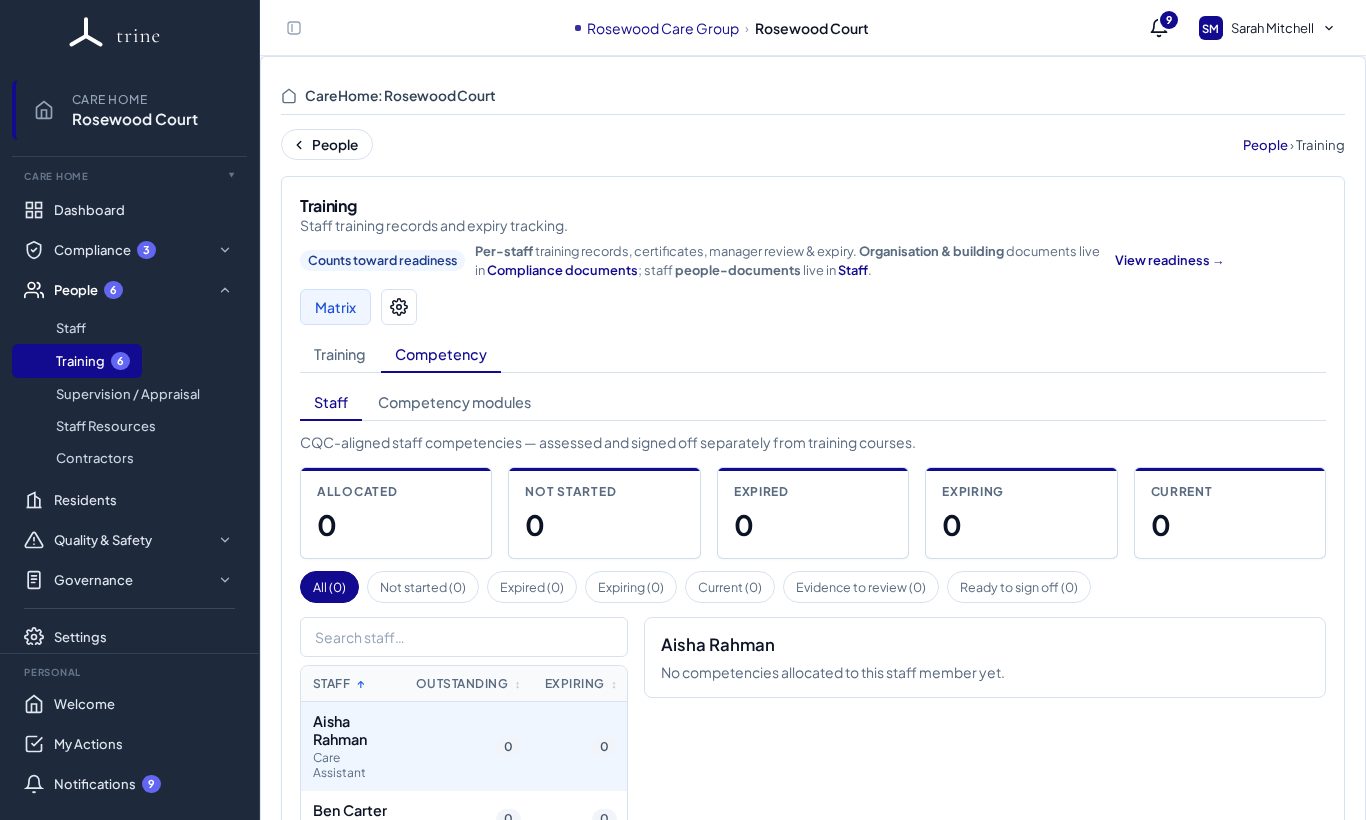
The page
- Sub-tabs: Staff and Competency modules (your home's library).
- Cards: Allocated, Not started, Expired, Expiring and Current.
- Filters include Evidence to review and Ready to sign off.
- Pick a person to see their allocated competencies.
How to
- Your home's library starts with recommended practical competencies — medicines, nursing practice, clinical care, moving and handling, deterioration and emergencies, mealtime support, shift leadership and Core care practice (observed). Edit any of them, or add your own.
- Each competency lists its assessment criteria (what the assessor must see or hear), suggested evidence and assessment methods. You can change these for your home.
- Each recommended competency applies to the roles it suits — for example nursing competencies to nurses and clinical leads, and Controlled drugs to nurses and clinical leads only. Non-clinical roles are never given clinical competencies automatically. Some (such as Delegated healthcare task and Epilepsy and rescue medication) are allocated by hand to named staff.
- Assess a staff member against each criterion — mark it Met or Not met (use Mark all met when everything was observed). When every criterion is met, sign off as competent; the answers are kept with the assessment along with the reassessment date.
- If any criterion is not met, record the attempt as Not yet competent: add what needs to improve and a Reassess by date (one month by default). The competency stays outstanding, the attempt is kept in its history, and it is flagged if the reassessment date passes.
- Where required, attach supporting evidence — required evidence must be accepted before a competent sign-off.
Staying on top of reassessments
- The Training menu and the Competency tab show a number when competency evidence is waiting for review, a competency is ready to sign off, or a reassessment is overdue or due soon. Each Notification Centre item opens the matching filter (Evidence to review, Ready to sign off, Expired or Expiring). These counts are shown to managers and administrators.
- Managers also receive the daily expiry reminder email 30, 14 and 1 days before a competency sign-off expires (you can turn expiry reminders off in your email settings).
Library updates
- When a recommended competency is improved, your copy shows Update available instead of changing on its own. Choose Review update to compare your version with the new one, then Apply update or Keep my version. If you keep your version, you can still apply the update later from the Update dismissed · Review link.
- Applying updates the name, description, criteria, suggested evidence, methods and the roles it applies to. Your reassessment cadence, evidence rule and mandatory setting stay as you set them, and past sign-offs are never changed.
- If the update narrows the roles, you can tick an option to also remove not-started allocations for staff whose role is no longer covered. Allocations with a sign-off or evidence are always kept. You can revert an update for 72 hours.
Good to know
- Self-assessment or self-sign-off is never allowed, including for managers.
- Competency covers hands-on skills assessed on the floor; certificated courses live in Training. Core care practice (observed) checks how staff apply that learning day to day.
- The recommended library is CQC-aligned guidance, not a complete legal list — use it alongside your own policies and each person's job description. Record what you observed; don't upload resident records or care plans.
Related: Training · Supervision and appraisal · Recruitment and onboarding