Readiness helps you answer: if CQC walked in today, could we show the evidence? It brings your requirements, evidence and actions into one figure and one to-do list.
Where to find it
- The Dashboard shows the verified evidence coverage gauge and the biggest blockers.
- Compliance → Readiness is where you work through them, on two tabs: Register (the action register) and Evidence gaps.
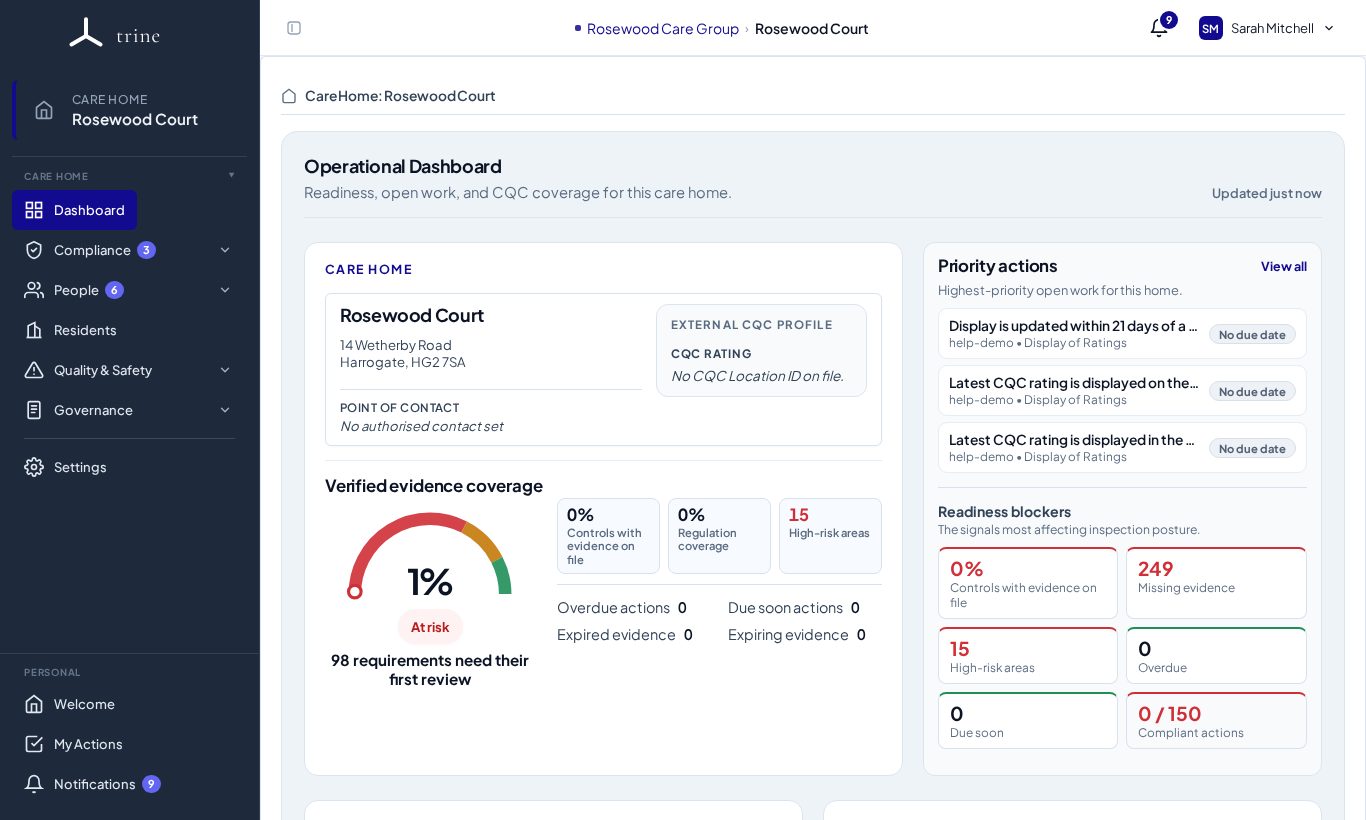
Verified evidence coverage
The gauge shows verified evidence coverage: of the requirements that have been assessed, the share that have current evidence.
- Current — the evidence is on file and in date, or the routine check, audit, register or attestation it's tracked through is up to date.
- Missing — nothing on file, the evidence has expired, or the linked check or audit is overdue or failed.
- Awaiting first review — the requirement is tracked through a check, audit or register that hasn't been reviewed yet. These aren't counted either way, and the dashboard shows how many there are.
Status: Good at 85% or more, Watch from 65%, At risk below that. A home never shows Good while requirements still await their first review. Not yet verified means nothing has been assessed yet; Setup needed means the home isn't set up yet.
Verified evidence coverage shows how well a home's evidence is verified. It isn't an overall clinical, regulatory or operational risk rating. Overdue actions and module figures (training, supervision, audits and so on) appear alongside it on the dashboard.
Controls with evidence on file is a different figure shown beside it: the share of applicable controls that have at least one uploaded evidence file on record. The file may have expired, and one file counts even when a control expects several documents. Routine checks, audits, registers and external attestations aren't included. Because of this it can be much higher or lower than verified evidence coverage.
Provider comparison and Provider Overview show the same figure and status for each home. The provider average only includes homes that have a percentage, and says how many.
The dashboard
- Verified evidence coverage — the gauge, with the number of requirements awaiting their first review.
- Priority actions — the most urgent items, with a View all link.
- Readiness blockers — controls with evidence on file, missing evidence, high-risk gaps, overdue and due-soon items, and compliant actions.
- Compliance programmes and Open work & people — audit, supervision, training, staffing gaps and care capacity at a glance.
Click any tile to open the matching list already filtered.
The action register
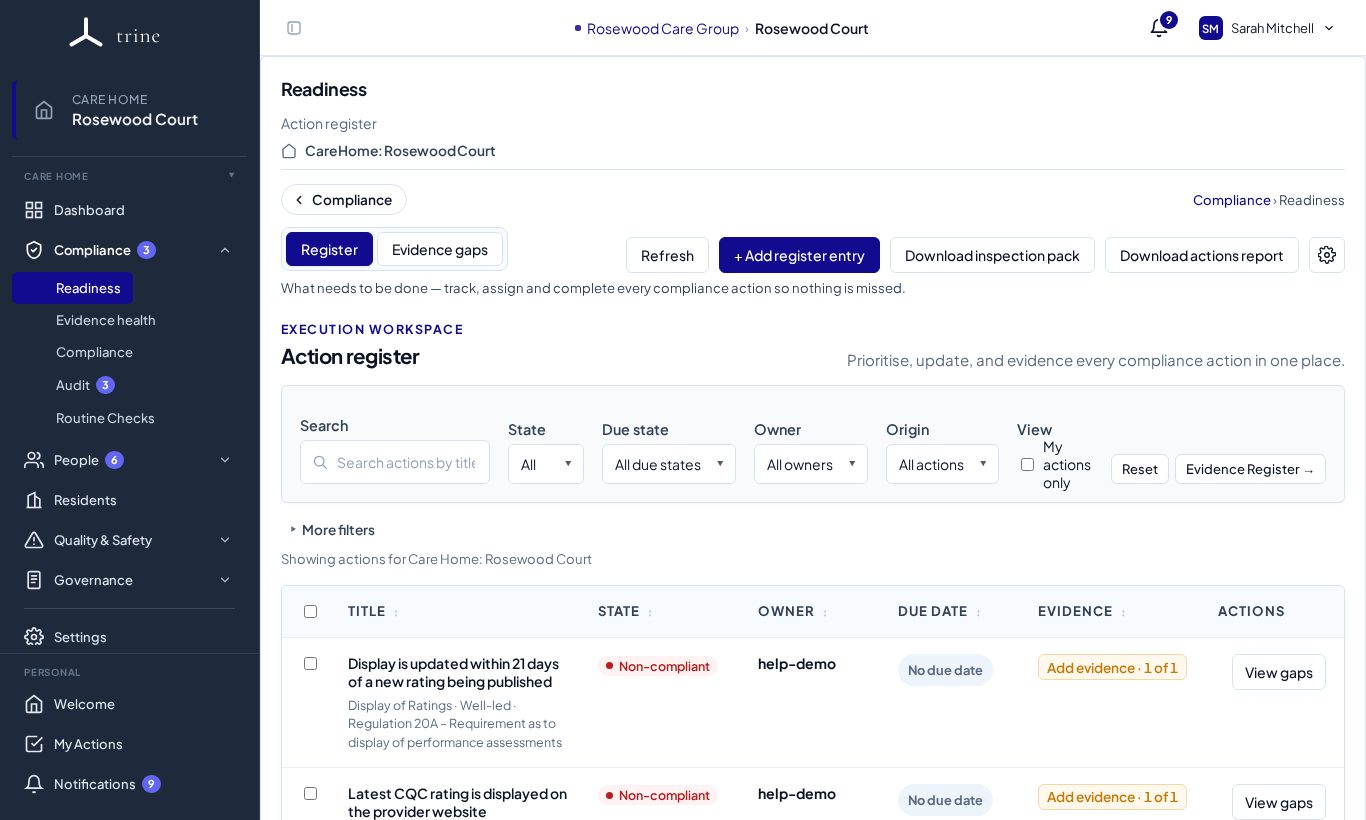
- Open Compliance → Readiness (the Register tab).
- Filter by State, Due state, Owner or Origin, or tick My actions only. More filters adds the rest.
- Each entry shows its state (for example Non-compliant), owner, due date and evidence (Add evidence · 1 of 1). Press View gaps to see exactly what's missing.
- Use + Add register entry to add your own action.
- Refresh re-reads everything after you've made changes elsewhere.
Evidence gaps
The Evidence gaps tab lists every requirement and how much evidence it has. See Evidence Health and gaps.
Downloads
- Download inspection pack — a full branded PDF covering readiness, regulations, evidence and actions, ready to hand to an inspector.
- Download actions report — the register as a report.
Tip: a brand-new home shows a calm grey Setup needed rather than a red At risk. That's expected until you add data.
Good to know
- Readiness surfaces that compare homes across a provider are Enterprise-only.
- Choosing where a requirement's evidence is tracked (in Trine, through a routine check or audit, or in your care-management system) needs the Manage readiness tracking routes permission. Administrators have it by default.
Related: Actions and My Actions · Evidence Health and gaps · Readiness settings