Signing in
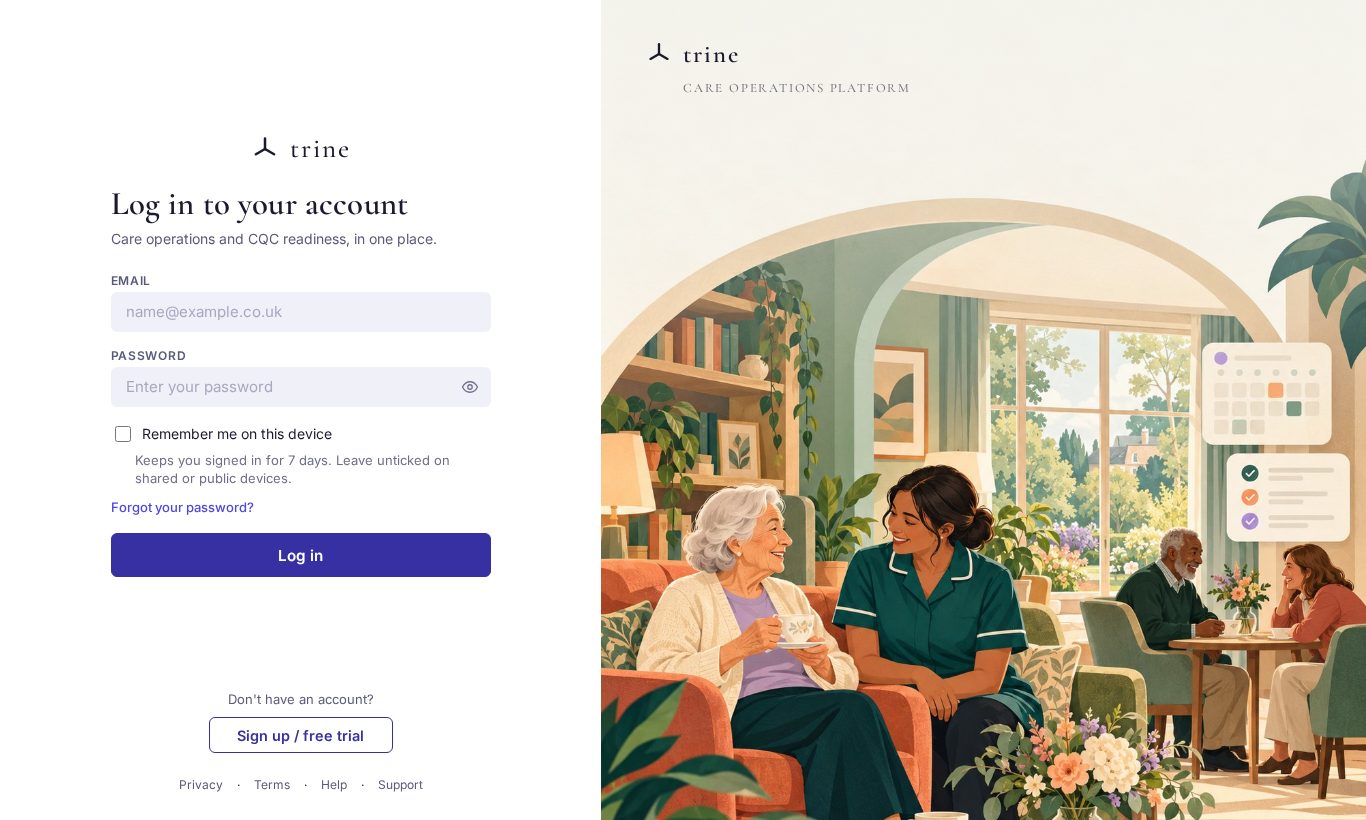
- Go to your Trine sign-in page and enter your email and password, then press Log in.
- Tick Remember me on this device to stay signed in for 7 days on a computer you trust. Leave it unticked on shared or public devices.
- If two-factor authentication (2FA) is on for your account, Trine asks for your code straight after your password, before anything else.
Entering your two-factor code
- The code screen has six boxes, one per digit. The first box is ready for typing as soon as the screen opens.
- Type the six digits from your authenticator app — the cursor moves to the next box on its own. Backspace steps back a box.
- You can also paste the whole code into any box; spaces or a dash in the pasted code are ignored.
- Press Enter (or the button) to continue.
- Lost access to your authenticator? Use a recovery code if you saved them, or ask your manager or administrator to reset your 2FA.
Choosing a workspace
After the code is accepted, if you belong to more than one provider or care home, Trine asks which workspace to open. You then land on that home's Welcome workspace. With a single home you go straight there.
Choosing a care home on Welcome
If you work in more than one care home, Welcome first asks Which home are you working in today? and shows one card per home. Click a card to open that home's Welcome page. To change later, use Choose a different home at the top of the Welcome page.
Switching care home
- Open My care homes in the User menu. It lists every care home you can open, grouped by provider, with a search box and sort.
- Click a home to open it. If it belongs to a different provider, Trine switches you to that provider automatically.
- The breadcrumb at the top centre always shows where you are — for example Rosewood Care Group › Rosewood Court.
- Your menu changes to match what you can access in that home. While it loads, the menu shows faint placeholder bars, then appears all at once.
Provider administrators: the Care Homes page
Provider → Care Homes shows each of your provider's homes as a card.
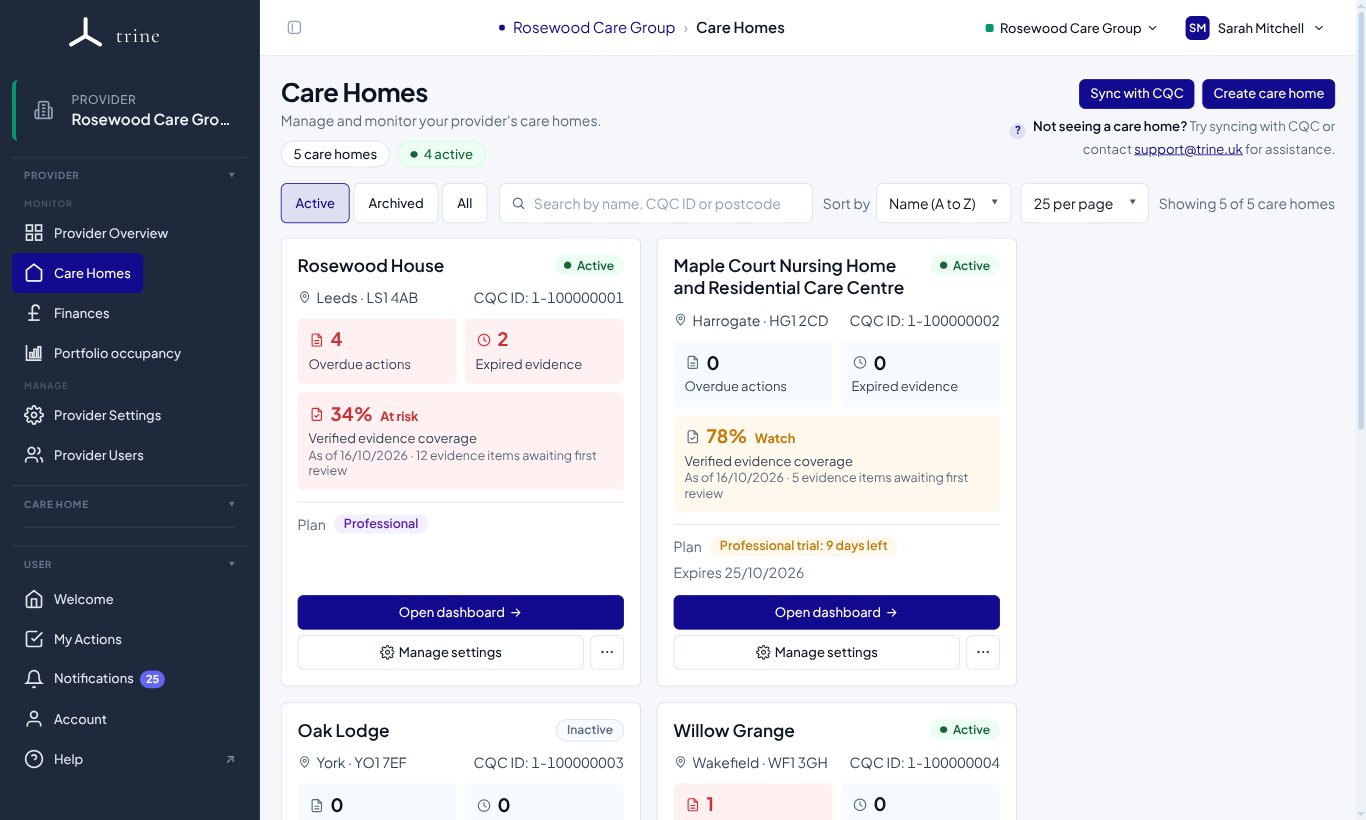
- Each card shows the home's status, town and postcode, CQC ID and — if your role includes them — overdue actions, expired evidence, verified evidence coverage and plan.
- Verified evidence coverage is the same figure as the home's dashboard gauge, taken from the daily calculation: the percentage, its status (Good, Watch or At risk), the date it was calculated and how many evidence items await their first review. It shows how well the home's evidence is verified, not an overall risk rating.
- Not available yet means the home hasn't had its daily calculation yet (it runs overnight); Update overdue means the last calculation is more than 36 hours old. Open the home's dashboard for the live figure.
- Open dashboard takes you into that home. Manage settings opens its Care Home Settings. More options sit under ⋯.
- Use Active / Archived / All, the search box and Sort by to find a home.
- You only see figures and buttons your role allows. Finance-only users don't get care-home management buttons.
Good to know
- What you can see and do depends on your role and the care home you're in. If a section looks empty, check you've selected the right care home.
- Forgotten your password? Use Forgot your password? on the sign-in page — a reset link is emailed to you.
- If your provider requires 2FA for your role, you'll be asked to set it up the first time you sign in.
Related: Your account and security · Your Welcome workspace